
One Tap Typing: Turn On Voice to Text on Android Easily
Tired of tapping out long messages on your Android keyboard? Voice-to-text is a powerful built-in feature that converts your spoken words into written text, making communication faster and more convenient. Whether you're composing emails, sending texts, or taking notes, voice typing can significantly boost your productivity. Most Android phones come with Google Voice Typing pre-activated, but if yours isn't working, you may need to enable voice input manually. Learning how to turn on voice to text on Android takes just a few simple steps, and you'll be dictating messages in no time.
How to Turn On Voice to Text on Android
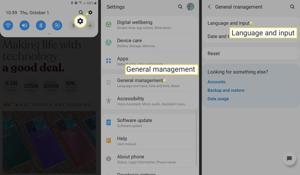
Enabling voice typing Android requires accessing your keyboard settings. Here's how to turn on voice to text on Android through your device settings:
- Open your Settings app
- Navigate to System (or General Management on Samsung devices)
- Tap Languages & Input or Language & Keyboard
- Select Virtual Keyboard or On-screen Keyboard
- Choose Gboard (Google Keyboard) or your default keyboard
- Tap Voice Typing and toggle Use Voice Typing to the ON position
Keep in mind that menu names vary slightly depending on your Android version and phone manufacturer. Samsung Galaxy users might find these options under General Management > Samsung Keyboard Settings, while Google Pixel users typically follow the Gboard path. Once enabled, the feature works across all apps that use your keyboard.
Using Voice Typing with the Microphone Icon
After you enable voice input, accessing the feature is incredibly simple. Open any app that requires text input—messages, email, notes, or search bars. When your Android keyboard appears, look for the microphone icon, usually located at the top-right corner or in the space bar area.
Tap the microphone icon and start speaking clearly into your phone. Your words will appear on screen in real-time. For best results, speak at a normal pace in a quiet environment. You can dictate punctuation by saying commands like "comma," "period," "question mark," or "new line." If the system needs time to process your speech, pause briefly between sentences. The Google Voice Typing feature has impressive accuracy and learns your voice patterns over time, making it more effective with regular use.
Quick Activation Method
There's an even faster way to launch voice typing without opening your keyboard settings. Simply press and hold the main button on your Android device (typically the home button or the side power key on newer models). This gesture activates Google Voice Typing directly, allowing you to start dictating immediately.
Samsung device users can customize their side key to launch voice input with a long press. This quick activation method is perfect when you need hands-free typing while driving, cooking, or multitasking.
Start Talking, Stop Tapping
Now that you know how to turn on voice to text on Android, you can enjoy faster messaging, effortless email composition, and truly hands-free typing. Voice typing is especially helpful for people with mobility challenges, anyone who types frequently, or those who simply want to save time. Practice using the feature regularly—the more you use it, the better it recognizes your voice and speech patterns, improving accuracy and efficiency with every conversation.

 English
 Arabic
 French
 Portuguese
 Deutsch
 Turkish
 Dutch
Dutch
 Italiano
 Russian
 Romaian
 Portuguese (Brazil)
 Greek
Greek